Complete Tutorial
How to Use Saval
Step-by-step tutorials for teachers and students. One goal per tutorial, numbered steps, and a clear outcome.
Saval Workflow at a Glance
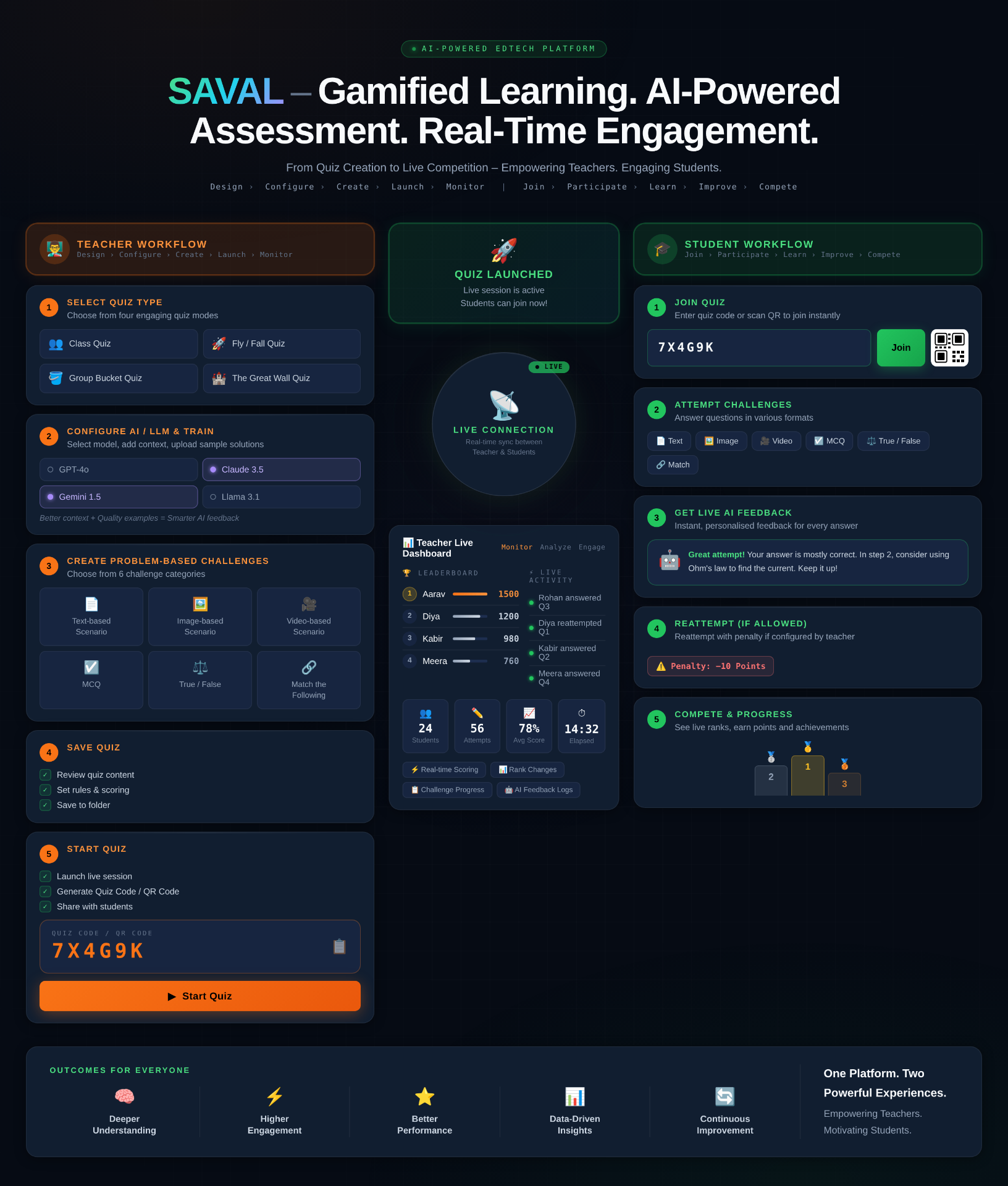
Quick Start
For Teachers
Create and manage engaging quizzes
1
Sign up and set your role as Teacher2
Create a quiz with challenges and AI settings3
Share the quiz code with your students4
Monitor progress on the Live DashboardFor Students
Join quizzes and track your progress
1
Sign up and set your role as Student2
Get the quiz code from your teacher3
Join and complete the challenges4
Review AI feedback and improveStep-by-Step Tutorials
Teacher Guide
Complete Teacher Tutorial
Create quizzes, configure AI grading, monitor students, and analyze results
Progress0 of 10 steps completed
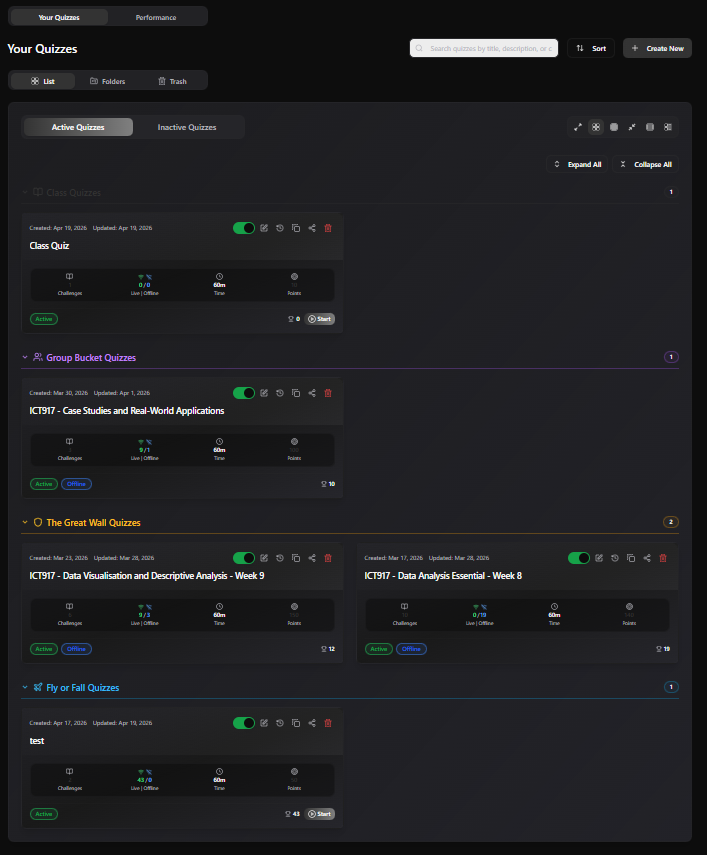
- Essential
Example: Sign up as 'Dr. Smith' from 'University of Technology'. Click 'Needs Support' card to see struggling students.
Pro Tip: Use the Performance drill-down to quickly identify students who need immediate attention.
Quick Tips
Teacher Quick Tips
Use 'Flexible' AI strictness for beginners, 'Strict' for advanced students or exams
Select faster AI models (Gemini Flash) for large classes to reduce grading wait time
Enable background music in Live Dashboard to create an engaging atmosphere
Student performance is based on Best Score - encourage multiple attempts!
Export results to CSV for easy integration with your institution's grade book
Create folders by semester or course to keep quizzes organized
Use fullscreen mode in Live Dashboard for classroom projectors
Project the quiz QR code from the quiz card so students can join by scanning instead of typing
Student Quick Tips
Read the entire challenge description before starting your solution
Use the Math mode's symbol picker for complex equations - no need to memorize LaTeX
Check the leaderboard to stay motivated and see how you compare
Review AI feedback carefully - it highlights exactly what to improve
Use fullscreen mode for complex coding challenges for more space
If repeats are allowed, learn from feedback before reattempting for better scores
Your work auto-saves, so don't worry about losing progress on refresh
Submit early rather than at the last second to avoid connection issues
Frequently Asked Questions
Teacher FAQs
Common questions from teachers
Student FAQs
Common questions from students
Download Printable Guides
Get comprehensive PDF guides for offline reference